Thursday, September 19, 2019

Can't add disks to a Microsoft Failover Cluster


Just something simple that I thought I would share.

I had to rebuild a Microsoft Failover Cluster today and when I went to add the disks back into the first node I could not see any disks. The message I was getting was "No disk suitable for cluster disk were found". I hunted around on the mighty Google trying to find something that would help me out and got close but nothing spot on.

Tried running a Get-ClusterSharedVolumeState....nothing....
Tried running a GetClusterAvailableDisk....Nothing.
Ran Get-ClusterLog and then I went to Event Viewer - Applications and Services - Microsoft - Windows - FailoverClustering - Diagnostic.

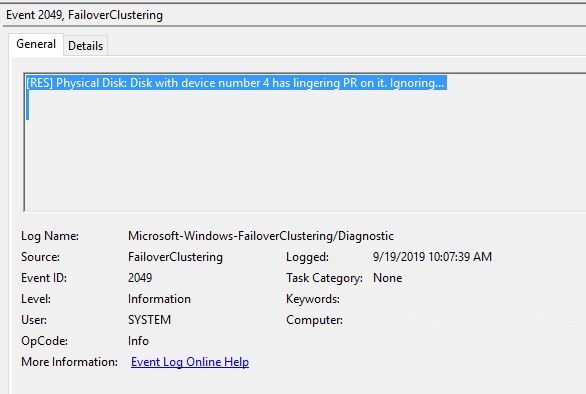
What I found in there finally pointed to me what was going on. I was getting the below error on each of my disks:


A physical disk reservation was stopping the disks from being seen in the cluster.

So I was able to run the following command on each of my disks and VOILA! They all showed up in Failover Cluster Manager to be added as Cluster disks!

Clear-ClusterDiskReservation -Disk 1
Clear-ClusterDiskReservation -Disk 2

It will ask you "Are you sure you want to clear the disk reservation on node SERVERNAME" 

I was then able to continue with the rest of my cluster rebuild without issue!


BTW this worked in my case. I do not guarantee this will work for anyone else. As always research and check and make sure that the above solution fits your issue. I am not responsible for the use of knowledge from the above on any computer systems. There are no warranties expressed or implied.

Friday, December 9, 2016

SOLVED! Moving RDS to a new SQL server

We have been trying to figure out what we needed to do to get our RDS server moved to another SQL server during a DR situation.

The message we were getting in the event log was:

The Remote Desktop Management service terminated with the following service-specific error %%4294967295


Now I looked at several articles online and there was a lot of different ideas, but in the end, with the help of my SQL Admin we figured it out! 

On my Windows 2012 R2 RDS Broker server I went into the registry searching for the connection string to the SQL server. It was located in the HKEY_LOCAL_MACHINE\SYSTEM\CurrentControlSet\Services\Tssdis\Parameters key.

The DBConnString value had the whole connection string in there! Here is where we stumbled a little...(yes, I am a little slow on the uptake sometimes) 

DRIVER=SQL Server Native Client 11.0;SERVER=OURSQLSERVER,64229;Trusted_Connection=Yes;APP=Remote Desktop Services Connection Broker;DATABASE=RDBrokers

The number....right after SERVER=OURSQLSERVER? 64229? That is the port that our instance of SQL was originally running on. Turns out when we restored the SQL instance to our new server...the port had changed!

DOH!

So we went into SQL Server Configuration Manager, selected the SQL Server Network Configuration, Protocols for (Instance Name), selected TCP/IP, right clicked and selected properties. Once the TCP/IP properties dialog box comes up, select the IP Addresses tab and in our case we scrolled to the bottom of the page to TCP Dynamic Ports under the IPALL heading and found the new port our SQL instance was running under.

Now, to get RDS up and running we could do one of two things....We can change the port the SQL instance is running under, stop and restart the SQL instance....or we can change the connection string that we referenced earlier. So we chose to do the later. We changed the 64229 port in the connection string to the new port 64225 and WHAM!!! RDS Management service started right up when we started it under services.

So after a quick happy dance. We tried RDS and we were back in business!

Hope this helps someone!

Thanks for reading!

Tuesday, July 19, 2016

VMWorld 2016!!!

WOOHOOO!!!

I get to go this year! I'm so excited, first time going to Vegas and first time going to VMworld in Vegas! In case you haven't started booking your session....they are booking up FAST! I have already had to Favorite some in hopes that they might open up more sessions or someone might drop.

My plan is to cover as much as I can from the conference. I normally just throw up whatever highlights I see and try not to geek out too much *grin*.

 I really want to do some networking this year...so I will attempt to be a little more social. I normally go with the intentions of meeting up with the photography group or going to the Hang Space and somehow it just never seems to happen....I get plenty of pictures....but that is normally me wandering aimlessly around and finding cool stuff.

Anyway look forward to seeing everyone!

#VMworld2016

Wednesday, January 6, 2016

New Free eBooks from Microsoft Press

Here is the URL for some new Microsoft books. There is some good stuff out there!

https://mva.microsoft.com/ebooks?CR_CC=200687234&WT.mc_id=16265-DEV-crm_web_w04_dsd_ebookazur-1


Introducing Windows 10 for IT Professionals, Preview Edition
Introducing Microsoft SQL Server 2014
Introducing Microsoft System Center 2012 R2
Introducing Windows Server 2012 R2


and a host of other SCCM and Azure books.


Tuesday, January 5, 2016

Virtual Center Server Service Constantly Crashing

Ran into a new experience today. Came in from my Christmas holiday after being off for 12 days and low and behold my vCenter is not working.

Everything seems to be starting....but then it crashes out, and restarts itself. I could log into the vCenter just long enough to see all the VMs and boom. It crashed again....%^&*!!? Not the way I want to spend my first day back.....ah well...


So I poke around for a while and finally call VMware, as I had never seen this particular behavior before. We fussed around for a while until the Tech called over his senior resource (I seriously owe this guy a beer), he had us open up the vpxd log. In there we did a search for "minidump". The minidump section of the log pointed out that a VM on one of my hosts was causing the issue....

"2016-01-04T15:54:53.874-06:00 [10036 info 'Default' opID=SWI-335197fd testSet=host-62114,vm-2380] CoreDump: Writing minidump"


The next thing the senior did was to then search the log file from the top and what he found was that Network Adapter 1 on VM-2380 was mentioned in the log. Interesting ......

2016-01-04T15:54:33.484-06:00 [10036 warning 'VmCheck' opID=SWI-335197fd testSet=host-62114,vm-2380] [NetworksAccessible] virtual device "Network adapter 1" (4000) has an empty backing info

Ok the next thing he did was to search for vm-2380 in the log from the top and it gave me the exact name of the VM that was having the issue.....


At this point it was a mad scramble to log into the Hosts via the vSphere Client and find the offending VM (of course it was on the last host in our farm). We did an "edit settings" on the VM and saw the Network Adapter was listed in a "inconsistent state" instead of being in the proper VLAN. So we powered off the VM and as soon as we did it changed back to the proper VLAN. Now we were able to start the Virtual Center Server service and it stayed up and stable with no issues....

Simple enough fix, but I learned something, so I figured I would pass it along.


Wednesday, October 7, 2015

Weird Windows 10 RDP issue

RDP Freezing up, Mapping Drives with Alternate Credentials Freezes up Explorer

Ran into a weird little issue with Windows 10 today. We are rolling these new Dell Precision T1700s out to the System Administrators and our Programmers, and figured out that we could not RDP to anything with alternate credentials and we could not map drives in Windows Explorer with alternate credentials either. If you tried to RDP it would freeze up the RDP session, and if you tried to map a drive through Explorer it would freeze up Explorer but good! If you managed to get to Task Manager you could kill Explorer and restart it.

I tried the mighty Google for answers, and came up with nothing! After a couple of weeks of trying different things, I again turned to the mighty Google and this time struck GOLD!
https://community.spiceworks.com/topic/1120802-remote-desktop-in-window-10-pro-is-not-able-to-connect-to-any-clients?page=1#entry-5097312 

Sail_Maine for the WIN!!! Thank you so much for finding this.

Turns out, the Dell Data Protection Protection Suite was causing this to happen. 

  • Dell Data Protection | Client Security Framework
  • Dell Data Protection | Security Tools
  • Dell Data Protection | Security Tools Authentication
We had to remove the Client Security Framework first, then remove the Security Tools Authentication, finally the Security Tool and reboot.

Try and fire up the RDP with alternate credentials now...and BAM!!! We have a winner folks! We can now get where we need to and no more unhappy programmers.....well, at least for now! 

HAPPY DANCE!!! 


Friday, September 11, 2015

Edge Browser Hijack

I have been working on Microsoft stuff for almost twenty years now....I know there is forever going to be a new exploit or bug but "C'mon Microsoft!!! Really?" This one is just careless and stupid. This is your new flag ship browser that you are touting the best security on!


I just ran into a really nasty Browser Hijack on Windows 10 with Microsoft Edge.


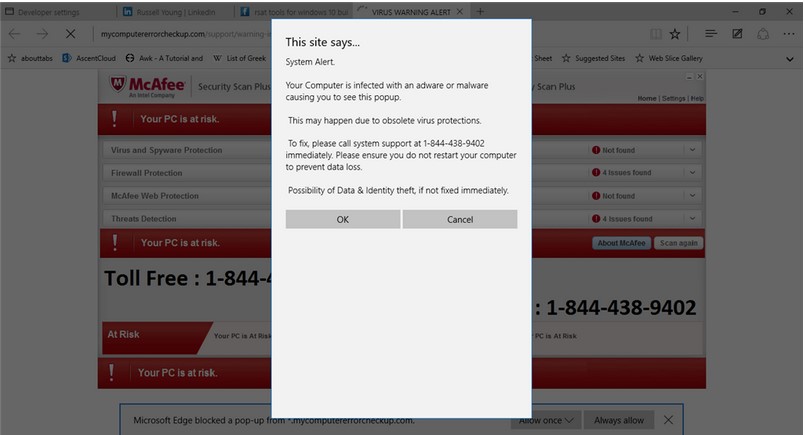
I clicked on a website link and was immediately presented the below. I can't close it, I can't hit Alt-F4 to close it, I can't get to the setting for Edge. No problem normally right? Just close it with Task Manager and it will go away. Then you can scan with Antivirus just to be sure….well not so much. When I re-opened Edge I immediately got the same pop up again. Here is the thing….I could not get it to close so I could not get around it. I tried closing the browser again and same thing. I read a couple of articles online, one stating that if you turn off networking you can reset it but no joy there either. There is a nine page long discussion here http://answers.microsoft.com/en-us/insider/forum/insider_internet-insider_spartan/edge-browser-hijacked-unable-to-reset/1768f671-90d9-4dfb-88c5-679a3664634a?page=1 that even up until today people are trying to figure this one out.


What I had to do to fix this was

1.       Close the Edge Browser
2.       Navigate to the following directory C:\Users\<users>\AppData\Local\Packages\Microsoft.MicrosoftEdge_xxxxxx\AC\MicrosoftEdge\User\Default\Recovery\Active
3.       Delete everything in that directory.
You can now open Microsoft Edge back up again without the above.


BTW this also works if you are experiencing a lot of popups in Edge as well! 

At this time doing a scan with Windows Defender does not work!  So again...."C'mon Microsoft!!! Really?"


Wednesday, August 12, 2015

The VMware Compatibility Guide is your friend!

Fairly simple one today folks!

I was trying to do an install of ESXi 5.1 U1 on a Cisco C240 M4 and getting a really pretty purple screen saying: NOT_IMPLEMENTED bora/vmkernal/hardware/apic.c:1048

After a frustrating call to VMware support, I threw my hands up and went to the web to fix it myself (I Googled it of course). 


I got what pointed me the right direction from this link.

Steve_Delassus pointed at a KB article and then said something simple...."Check the compatibility matrix and see if your server is in it". 


Well, heck....there is was ....plain as day....


I kicked my self a couple of times, then downloaded 5.1 U3 and it installed with no issues....


So what have I learned Boys and Girls? The VMware Compatibility Guide is your friend! 

Thursday, August 6, 2015

SRM 6 NIGHTMARE!!!

***************************
Update 2

This case is now closed. Only advice that I can give at this point is be VERY careful when you are updating the Certificates in the MOB. If you do it wrong, you will be rebuilding your environment.

The below notes do work for fixing the MOB just make sure you know exactly what your syntax is supposed to be and know which Certificates you are replacing...


Back to the drawing board for me.....


*****SIGH*****


$#@%^&*&%$##^%^&!!!


***************************
UPDATE!!!

After going through all of this again (time has finally permitted me to get a back to this). I have finally got MOST of this working. I say most because I reset my PSC and vCenter Certs to the same thing and now I have to call support to see if I can change this! *Yes, I am an idiot* I will update again as I get this last part figured out.


VMware has updated KB2121701 so many times over the last couple of months that they must really be sick of that page.

The ROOT of the problem is the certificates that are associated with the PSC and the vCenter servers. If they get changed, for some reason VMware does not change them properly in the MOB *or where ever the info is stored* and it then falls on you the Admin to be clever enough to know this is the issue......


If you follow the instructions (very carefully I might add) it gives you instructions how to view what the current certificate that the MOB has listed for your PSCs and your vCenters , how to download a copy of those Certs to get a Thumbprint, how to download your current Certificates, and finally how to use the ls_update_certs.py * which you have to install a new one from the KB article* script to modify what is in the MOB pages. Below is the example from the article of the scripts you will run. I want to point out if you have multiple PSCs and vCenters you will need to do this for ALL of them! You also have to run this from the PSC server.


%VMWARE_PYTHON_BIN%" ls_update_certs.py --url https://psc.vmware.com/lookupservice/sdk --fingerprint 13:1E:60:93:E4:E6:59:31:55:EB:74:51:67:2A:99:F8:3F:04:83:88 --certfile c:\certificates\new_machine.crt --user Administrator@vsphere.local --password Password


You would need to do the above for:

1.) Your Production PSC *get the thumbprint for the old cert and download the new cert to a central location*
2.) Your Production vCenter *get the thumbprint for the old cert and download the new cert to a central location*
3.) Your DR PSC *get the thumbprint for the old cert and download the new cert to a central location*
4.) Your DR vCenter *get the thumbprint for the old cert and download the new cert to a central location*

I don't know how to make KB 2121701 easier to read but there has to be a way....it is a wealth of knowledge but....it is not easy to obtain that knowledge! 


****************************


I am trying to love VMware vSphere 6 and Site Recovery Manager 6 (SRM). I am trying to show my confidence in VMware. It's not working though.....and I know, I broke the cardinal rule of IT “never adopt early.”

VMware has been my favorite technology for a long time! I drank the Kool-aide and in my mind there is not another company that is doing the kinds of things that they are. Let's face it though....nobody is perfect.

I have now had a case open with them since June 8th about Site Recovery Manager 6 and vCenter 6, about 2 months. I have talked to some great techs there at VMware, but to me I am beginning to sense that there is a lot of confusion among their ranks about the new products. I have had techs tell me that I had to have the same certificate for both the protected and recovery site in order for things to work, and yet their install and configure manual clearly says different. I have had technicians that did not know what the VMCA is and what the function of it was, going as far as to tell me that I needed to do individual certs for each of my vCenter servers, Platform Services Controller (PSC) servers and my ESXi servers. I still have not gotten a good answer as to if SRM and the VMCA work together or if they will sometime in the future. Heck, the first month of my case was spent calling and begging their support team to call me back, it wasn’t until my VP called and started screaming that I started getting any serious traction on the case.

The frustrating part? I have done a bog standard install of SRM. I have setup my environment with VMware’s best practices. I have even gone so far as to ask the technicians to verify the install.

The PSCs are External. The vCenter Servers and the SRM servers are stand-alone VM servers.  I made my VMCAs into a subordinate Certificate Authorities to my in-house Certificate Authority so that all of my clients would trust the sites and we would not have issues.


It is exactly as VMware shows it in a standard Two-Site Topology with one vCenter Server instance per Platform Services Controller (PSC).


My issue??  Here goes, when I go to Site Recovery>Sites from my production server, I immediately get the below message:


Error: Failed to connect to Lookup Service at HTTPS://DRPSCSERVER.DOMAIN.COM:443/lookupservice/sdk.
Reason:
com.vmware.vim.vmomi.core.exception. CertificateValidationException: Server certificate chain not verified.

Simple right? My certificates on my vCenter must not be trust that PSC chain right? One of the servers must not be have the chain or the certificate for the DR site….but they do. VMware has verified they do. I can go to the DR PSC server from my Production vCenter Server and it shows the site as trusted…

VMware has combed the logs, and “We ain’t found….”


Now, if I try the same exact thing from the DR side what happens you ask? Same exact thing, but the error message says that it certificate chain is not valid for the Production PSC server. Which is really weird….because I can see both vCenter servers on both the Production and DR sites. Oh, and once again I can go to the Production PSC from the vCenter server and it shows the site as well.

Ahh….so it must be the PSCs don’t trust each other…..NOPE. I can go to each of the PSCs and they both trust the other.

Well so that leaves the SRM servers right? One of them must be the culprit. Well, as before …the vCenter servers all look trusted, and so do the PSC servers. The certificates that the SRM servers have are actually from the parent CA. So they are trusted all the way through….

I am bumfuzzeled….

If anyone has any advice on this PLEASE speak up! Once I get a solution I promise I will append it to this entry….


Thursday, August 28, 2014

Final day!

I am so far behind, it is not even funny, but in my defense it has been a whirlwind couple of days! I was starting to get a little disappointed with what I was seeing this time around at VMWorld. There was something that I thought was missing and I could not put my finger on it. 

Yesterday I found it. CloudVolumes. With what I have been involved with at the office I was looking for something that would improve the user experience with View. This is definitely what I was looking for! You can use a vmdk file that has applications installed to standardize a department build, without having to install it into the base image. Of course that is over simplifying.

There are also other things coming up....Project Meteor , and Project Fargo both looking to make the vdi environment even more. There are so many good things coming! 

The party last night was pretty cool. I was thrilled to be able to be part of the paper airplane toss for charity. This to me was something very positive that VMware is doing and I applaud them for it.

#VMWorld #VMware

Monday, August 25, 2014

End of day report

Lots of info in the sessions today! View 6 sounds to be very promising, with it being configured out of the box to give 30% bandwidth savings right out of the box! 

The log viewer that VMware is offering sounds like a heck of a product too! Being able to pull logs from more than just your ESXi servers; it can pull logs from your SAN, Fiber Switches,Network Switches, Windows machine and much more. It also give you the ability to not only pull those logs, but you can correlate outages that happen and you can filter out everything but error and warnings if you want. Not to mention the fact that you can download filter packs from VMWare to help making diagnostics even easier.

The general session did have some great info, but let's face it, the general sessions are VMWare's time to rah rah about everything that is coming and remind you exactly how many buzz words they know. I don't know about all the other shops out there, but our shop has decided it will keep its infrastructure in-house so that being said I will not feel guilty about not jumping on VMWare's cloud chariot and racing of into the wild blue younder! 

Sunday, August 24, 2014

Shake, Rattle and Roll!!!

Wow! You know VMWORLD is gonna be great when the first thing they do is wake you up with a 3:30am wake up call that can shake down the house!! Naa....I know that VMware had nothing to do with the earthquake.....or did they?! 

Registration is done! Bag has been picked up....now time for some grub! Looking forward to hitting the labs here in a bit. As always VMware has done their best to make sure that the venues look great! The buzz is in the air and everyone is already talking about what tricks VMware has up its sleeve this year. 

Fully rested and looking forward to what the week has in store for me! 


Thursday, July 31, 2014

Unofficial VMworld 2014 Blogger List!!

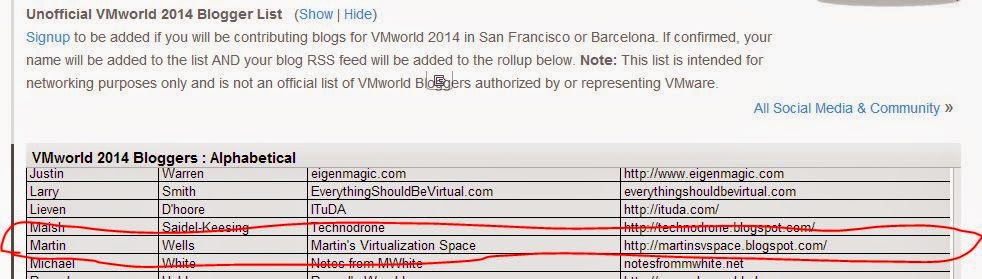
Oh my goodie aunt! I made it onto the Unofficial VMworld 2014 Blogger List!! I am so excited to be able to attend VMworld again this year. The sheer amount of information that is given during this even is mind blowing! This is going to be my third VMworld, and I still can't wait to get there. So from August 23rd through August 28th, I will be giving my opinion about the up and coming technologies from VMware and other market leaders!


As always looking forward to meeting new people and old friends there. Hope to see you all there!

Tuesday, July 8, 2014

Free Microsoft Books!

Had a colleague of mine send me a link to this today. So I figured I would share it with everyone else. Books can be really expensive so anytime I can find one that can be useful and free, I latch onto them!

Eric Ligman publishes a list of Microsoft books and has been doing so for a while now. This might not be new news for some of you but I thought it was great. So give him a follow on Twitter or Facebook or on his Blog, I am sure he would appreciate it!


http://blogs.msdn.com/b/mssmallbiz/archive/2014/07/07/largest-collection-of-free-microsoft-ebooks-ever-including-windows-8-1-windows-8-windows-7-office-2013-office-365-office-2010-sharepoint-2013-dynamics-crm-powershell-exchange-server-lync-2013-system-center-azure-cloud-sql.aspx

Wednesday, July 2, 2014

NetApp, CIFS, vFilers and FTP

I had a moment of sheer stupidity, dealing with vFilers and CIFS on our NetApp. I was trying to setup FTP to our CIFS on a non default vFiler and was getting no where fast. Tech Support for NetApp left a little something to be desired too, as they really could not seem to get what I was trying to do and they failed miserably calling me back with a proper response. I finally figured it out through trial and error, so I hope this helps someone.

The trick to this is to under stand that when you make another vFiler, you have to run all the commands for the vFiler (ftpd commands and cifs commands), under the context of the newly created vFiler and all the files that need to be edited will be edited under the new vFiler as well.

I logged into the NetApp and typed vfiler status then hit enter. This gave me the names of the running vFilers

TESTSAN1> vfiler status                  
vfiler0                                    running
vfiler_test                              running

I then change the context to the "test" vFiler. This is where my and it seems NetApp's Technical support's confusion came in. 


TESTSAN1>vfiler context vfiler_test


the prompt at this point changes to the new vFiler.

vfiler_test@TESTSAN1>                  


At this point you begin to make the changes that you need to enable FTP on your vFiler. I typed options ftpd to get a listing of all the possible configuration settings that could be made to the ftpd service.

vfiler_test@TESTSAN1> options ftpd                

ftpd.3way.enable             off                                
ftpd.anonymous.enable        off                            
ftpd.anonymous.home_dir                                  
ftpd.anonymous.name          anonymous              
ftpd.auth_style              ntlm                                 
ftpd.bypass_traverse_checking off                       
ftpd.dir.override            /vol/TEST_DATAVOL 
ftpd.dir.restriction         off                                  
ftpd.enable                  off                                     
ftpd.locking                 none                                 
ftpd.log.enable              on                                   
ftpd.log.filesize            512k                                
ftpd.log.nfiles              6                                     
ftpd.tcp_window_size         28960                     


I enabled the ftpd service first.

vfiler_test@TESTSAN1> options ftpd.enable on         


I then changed the FTP authentication style. For my environment ntlm is what we needed but you can use unix, ntlm and mixed.

vfiler_test@TESTSAN1> options ftpd.auth_style ntlm         


If you are using ntlm you have to specify the CIFS home directory in the /etc/cifs_homedir.cfg that is located in the etc$ share of the CIFS. In my case the path was \\TEST\etc$ I opened the path by using Windows Explorer and used a text editor to edited this file. Using the examples provided in the file I was able to edit the path in the file and saved the file to the same place in the etc$ share. Once you have specified the CIFS home directory you then run the cifs homedir load.


vfiler_test@TESTSAN1> cifs homedir load        


At this point you can make any other changes that you need such as ftpd.locking or the ftp.dir.override. I was now able to successfully connect to the CIFS and so long as I have proper NTFS permissions I can FTP files to the locations that I need to.


Wednesday, June 11, 2014

Provisioned Space and Used Space show 0KB

Ran into this issue earlier today when I was trying to get sizes of VMs in vCenter. A half of my machines were showing 0.00 B for their Provisioned and Used Space.


The solution was simple enough after scratching my head for a little bit. Select the server in vCenter and go to Configuration Tab. Select the Storage Adapters under Hardware. In the top right hand corner you will see Rescan All... click that and click OK at the next screen. vCenter will now fires off a rescan of your HBAs and your VMFS volumes and does a "Recompute Datastores Groups". Once that is done it should now show your Provisioned and Used Space without issue.

Sometimes it is the simple things that drive you crazy!!

ZOMBIES!!!! BRAINS.....

So I was running through the patching schedule with one of our other admins, when I decided to opened up RVTools and started looking at the vHealth tab. I was shocked to see :

As hard as we try to keep our environment clean, this was unexpected. What in the heck is a Zombie file? What are they doing? What the heck is causing them, and how can I get rid of them?!

Turns out a we had several different kinds of Zombie files. Our first kind was in our normal vSphere 5 Server environment, a snapshot that was not being shown in snapshot manager. Bizarre right? What they were doing is sucking our brains! Eh, ok so it was only eating up storage space on our LUNs, because they were not being cleaned off, and were causing the VMDK files to grow out of control. Same difference right? The second Zombie files that we had were being caused by our Horizon View VDI environment. These were different. These were old copies of our Virtual Desktops that hung around after we did recomposes.

The cause of the first set of Zombie files was a leftover snapshot from our EMC Avamar. Still investigating what happened here as this is not normal behavior but we do know it did it to a bunch of our VMs. The fix is fairly easy although it is tedious. Go to the VM take a snapshot, sometimes the new snapshot will fail but once it has failed it shows the old snapshot in the Snapshot Manager, other times it will succeed and you will now see two snapshots in the Snapshot Manager. Either way the solution is the same, select the Delete All in Snapshot Manager and wait for the snapshots to clear out.

The second set of Zombies, the VDI Zombies, were a little different. We had to go through the DataStores that we have assigned to Horizon View and check the dates on the files. Since we are using Dynamic Pools our VMs are recreated everyday, so we knew that if the files in the folder did not have today's date on them we could delete them. This was caused by creating "new" images. What we actually did was cloned our old golden image in an attempt to flatten out how many snapshots we had on it. Since it is technically a new Golden Image, the old folders that had the VDIs stayed out there, and the new ones were created as well. Again, another storage waste!

Now I know this probably all sounds very novice, but as I couldn't find anything on this with a "quick" 20 second look on the web so I figured I would share. Better policing of our DataStores is obviously needed! We are getting ready to implement (or at least demo) vCOps. Hopefully that will give us some more insight into these things, but still a HUGE shout out to RVTools !!! I love that tool! Great place to see little things in your environment that might not be right. It certainly saved my bacon!

Martin


VMWorld 2014!!

I am registered !!! Looking forward to seeing everything that has changed and being immersed again in all that is VMware!

I think I am going to take a crack at my VCP5-DCV while I am there. I haven't cert'd in a while so while I still can without having to take another class I guess I will get to it!

Hope to see you all there!

Thursday, August 29, 2013

Final day of VMWorld

I have not won any thing, I have not gone out drinking every night, and I have hardly done any networking, but I have had the most amazing experience here at VMWorld 2013. Yes, some sessions were lame, yes Microsoft was an annoyance, but all in all I have so much new information. So many new things to look at. I have gotten to take a look at the issues that the industry is facing. I can logically talk to some of the issues our uses will be facing if we just try to recreate the standard standalone desktop. 

What an amazing general session! The innovations that those men are putting out are AMAZING!! MakeyMakey, Romotive and Makerbot. These guys are my new idols, they are taking the bull by the horns and they are doing something new and fresh. These are the true leaders of the future.their ability to look at things in a fresh new light and make it come to life is nothing short of amazing. The uses for their tech is almost endless. Congrats and hats off to you!

This year I have been more focused on our Horizon environment. With a couple of other things splattered in just for good measure, but that is what my life is right now. 

A Big Thank You to VMWare for doing such a great job. You have been on point on everything in my mind. I am not one of the IT elite that get to travel to every event and I truly appreciate all the effort that was made to help us have the most pleasurable experience we could have (next year busses back to our rooms after the show please?). 

Thanks to my company for investing in me. I do appreciate it. I will do my part to make things work the best I can for us back home with the new knowledge. A special thanks to my wife for keeping everything running back home, I wish you were here with me honey.

Wednesday, August 28, 2013

Day 3 continued....

Wow the PCoIP class was awesome! Dude really knows his stuff! I picked up so many good tips. He was clear, and to the point. Banging out useful information throughout the whole session.

QOS - set PCoIP right under your  VoIP or your Telepresence.

Make sure your network latency is not high already.

Beware your "Burstable Networks"! Anything that is over your purchased bandwidth, it can be marked a discardable and this will definitely affect your performance. You are only guaranteed what you have purchased.

Interesting thing to note, Zero Clients will not really use the improvements to PCoIP. If you run desktops or thin clients that run the View Client they take advantage of the new improvements. This is a complete bummer to me. We as an organization are try to get rid of the damned desktops so we don't have the extra layer to troubleshoot. Ah well....we can hope they will be included someday.

There was a ton more but those were my highlights. Like I said that session rocked! 

Now the Technical Deep dive that I am in right now .....OMG! Wow....hard to understand monotone- and has mainly been bars and graphs. 

But he is starting to get to the meat of the session with the best practices....too bad half the folks have left during his death by PowerPoint!